
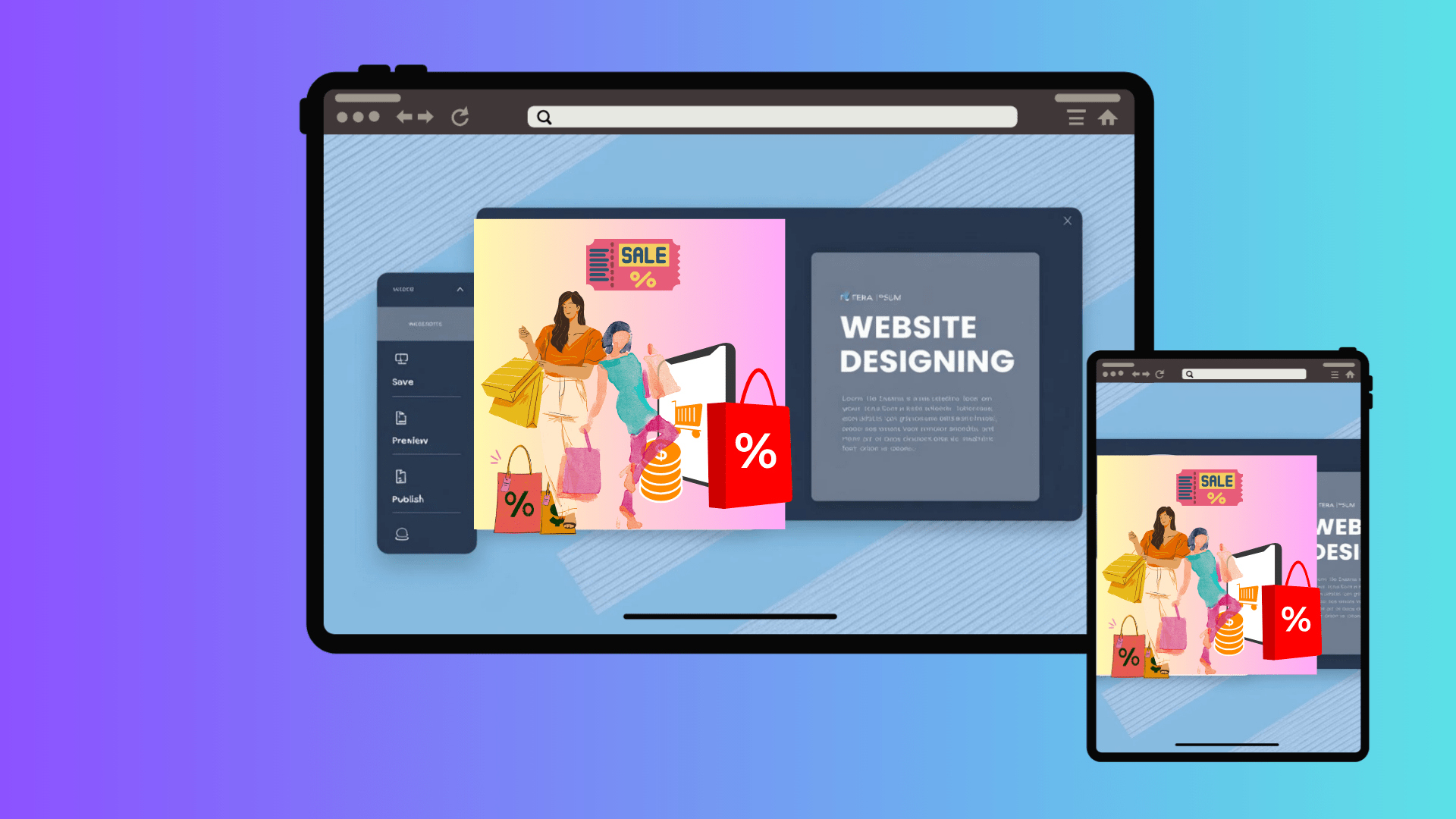
How to Create a Professional CMS Website for Your Business from Scratch:
Introduction
In today's digital-first world, having a professional website is not just a luxury it's a necessity. Whether you're running a local bakery or launching an online consulting firm, your website serves as your digital storefront. It builds credibility, enhances your reach, and boosts brand visibility. Fortunately, creating a professional CMS (Content Management System) website is easier than ever, even if you have limited technical knowledge.
This step-by-step guide will walk you through the process of building a CMS-based website from scratch.
Step 1: Define Your Goals and Audience
Before you dive into designing your site, it’s crucial to understand why you're building it and who it's for.
Define Your Website's Purpose
Common website goals include:
- E-commerce: Selling products directly online
- Lead Generation: Attracting potential customers through forms or offers
- Portfolio: Showcasing work samples (great for creatives and freelancers)
- Informational: Providing details about your business and services
Identify Your Target Audience
Ask yourself:
- Who are your ideal customers?
- What problems do they need solved?
- What kind of content or design would appeal to them?
Pro Tip: Create a simple customer persona to guide your content and design decisions.
Step 2: Choose a Domain Name and Hosting
Your domain name and hosting are the foundation of your CMS website.
Choosing a Domain Name
- Keep it short, simple, and easy to remember (e.g., www.GreenLeafCafe.com)
- Avoid numbers and hyphens
- Use keywords relevant to your business if possible
Tools to help: Namecheap, GoDaddy, Google Domains
Selecting a Hosting Provider
Choosing the right hosting provider is critical to the performance, scalability, and reliability of your CMS-based website. Your hosting should align with your chosen CMS and the specific needs of your website whether it’s a small business site, an e-commerce store, or a growing digital agency.
Key Hosting Types and When to Use Them
- Shared Hosting
- What it is: Multiple websites share a single server’s resources.
- Best for: Small business websites, personal blogs, or portfolios using lightweight CMS platforms like WordPress or Joomla.
- Pros:
- Affordable (great for beginners)
- Easy to set up
- Often comes with 1-click CMS installers
- Cons:
- Limited performance and slower load times during traffic spikes
- Limited control over server configuration
- Recommended Providers:
- Bluehost– Officially recommended by WordPress
- SiteGround– Excellent support and speed
- VPS Hosting (Virtual Private Server)
- What it is: A virtual server with dedicated resources on a shared physical server.
- Best for: Growing websites with moderate to high traffic, like mid-size e-commerce stores or service providers using WordPress, Drupal, or Magento.
- Pros:
- More control and flexibility
- Better speed and scalability
- Cons:
- Requires some technical knowledge or managed VPS service
- More expensive than shared hosting
- Recommended Providers:
- Dedicated Hosting
- What it is: You rent an entire physical server, fully dedicated to your website.
- Best for: Large enterprises, media-heavy websites, or high-traffic e-commerce platforms using robust CMSs like Magento or custom CMS frameworks.
- Pros:
- Maximum performance and control
- Customizable environment
- Cons:
- High cost
- Requires advanced technical expertise
- Recommended Providers:
- Managed CMS Hosting
- What it is: Hosting tailored for specific CMSs, such as WordPress or WooCommerce, where the host handles all the technical aspects (updates, backups, security, speed).
- Best for: Business owners who want zero maintenance hassle and optimized performance.
- Pros:
- Hassle-free maintenance
- High security and speed
- Expert support
- Cons:
- Slightly more expensive
- Less server customization
- Recommended Providers:
- Cloud Hosting
- What it is: Your website runs on a network of connected servers, offering on-demand scalability.
- Best for: SaaS platforms, online marketplaces, or fast-scaling startups using CMSs like WordPress, Drupal, or headless CMS.
- Pros:
- Excellent scalability and uptime
- Pay-as-you-go pricing models
- Cons:
- Technical setup may be complex for beginners
- Recommended Providers:
- Cloudways– Managed cloud hosting
- Amazon Web Services (AWS)– Best for custom or enterprise CMS builds
- Built-in Hosting with Website Builders
If you’re using CMS platforms likeWix,Webflow, or Squarespace, you don’t need to buy separate hosting. Hosting is integrated into their service plans.
- Pros:
- Seamless integration
- No setup or technical configuration
- Cons:
- Less flexibility and control
- Migration to other platforms can be tricky
- Best For: Beginners who prioritize ease-of-use over advanced functionality
Pro Tip: Always ensure your hosting includes an SSL certificate, daily backups, and excellent customer support—especially if you’re just starting out.
Step 3: Choose a CMS Platform
A Content Management System (CMS) enables you to build, manage, and update your website’s content—without writing a single line of code. Choosing the right CMS depends on your business goals, your technical skill level, and the type of user experience you want to deliver.
Top CMS Platforms for Businesses
- WordPress.org (Open Source)
- Pros:
- Highly customizable with thousands of plugins and themes
- SEO-friendly and developer-friendly
- Huge community and support ecosystem
- Cons:
- Requires manual setup, hosting, and regular maintenance
- Wix (Hosted CMS)
- Pros:
- Drag-and-drop editor with built-in hosting
- Great for beginners and small businesses
- No coding required
- Cons:
- Limited flexibility for advanced custom features
- Squarespace (Hosted CMS)
- Pros:
- Elegant, designer-quality templates
- All-in-one platform with hosting and security
- Cons:
- Fewer third-party extensions and integrations
- Shopify (E-commerce CMS)
- Pros:
- Purpose-built for online stores
- Built-in payment processing, shipping tools, and scalability
- Cons:
- Monthly subscription can be costly with add-ons
- Webflow (Visual CMS for Designers)
- Pros:
- Design freedom similar to Figma or Adobe XD
- Built-in CMS and hosting
- SEO-friendly and clean code output
- Cons:
- Slight learning curve for non-designers
- More expensive than Wix or WordPress for some use cases
- Adobe Experience Manager (AEM) (Enterprise CMS)
- Pros:
- Highly scalable and secure; perfect for large corporations
- Deep integration with Adobe Creative Cloud and marketing tools
- Cons:
- High cost and complexity
- Requires technical setup and enterprise-level planning
- Figma (Design Tool, not a CMS—but read this!)
- Pros:
- Excellent for designing UI/UX before building the actual website
- Real-time collaboration for teams
- Used by many professionals to prototype sites before development
- Cons:
- Nota website builder or CMS—designs must be exported and developed using another CMS or platform (like Webflow or WordPress)
Step 4: Design Your CMS Website
Design is key to making a good first impression.
Best Practices:
- Choose a responsive theme or template
- Stick to your brand colors and fonts
- Organize navigation clearly (use menus and categories)
- Keep layout clean and focused
CMS Features to Use:
- WordPress: Use themes likeAstra or OceanWP and plugins like Elementor for design and customization.
- Wix: Drag-and-drop builder with customizable sections; great for beginners.
- Squarespace: Sleek templates with content blocks; ideal for creatives.
- Shopify: Ready-to-use e-commerce themes and built-in sales tools.
- Webflow: Visual builder with CMS collections; perfect for design-driven sites.
- Adobe Experience Manager (AEM): Enterprise-level content management and personalization.
- Figma(Design tool): Create your website layout and export to platforms like Webflow or handoff to developers
Pro Tip: Preview your design on mobile and desktop before finalizing.
Step 5: Create Essential CMS Pages
Set up these must-have pages using your CMS editor:
1. Home Page
- Feature your main message or value proposition
- Include a strong call-to-action (CTA)
2. About Page
- Share your business story and values
- Add photos of your team if applicable
3. Services/Products Page
- Describe what you offer with clear benefits and visuals
4. Contact Page
- Use your CMS’s form plugin/module
- Embed a map and include all contact details
5. Blog (Optional)
- Useful for SEO and sharing news or updates
Step 6: Optimize Your CMS Site for SEO
SEO ensures that people find your website on search engines.
SEO Tips for CMS Users:
- Use SEO plugins (e.g., Yoast SEO for WordPress)
- Add alt text to all images
- Use heading tags (H1, H2, etc.) properly
- Ensure fast load times with caching plugins or built-in CMS features
- Submit your sitemap to Google Search Console
Pro Tip: Use Google Keyword Planner or Uber suggest finding search terms your audience uses.
Step 7: Enhance Your CMS with Plugins and Integrations
Add tools to improve your website's functionality and user experience.
Useful CMS Plugins/Integrations:
- Forms: WPForms (WordPress), Wix Forms, Typeform
- Live Chat: Tidio, Crisp Chat
- Analytics: Google Analytics, MonsterInsights (WordPress)
- Security: Wordfence (WordPress), built-in security on hosted CMS
- Backup: UpdraftPlus (WordPress), automatic backups on Squarespace/Wix
Pro Tip: Keep plugins updated to maintain performance and security.
Step 8: Test and Launch
Before going live, test your CMS site thoroughly.
Testing Checklist:
- Check on various devices and browsers
- Test all forms, buttons, and links
- Proofread content
- Validate mobile responsiveness and speed
Launch Tips:
- Announce on social media
- Email your list
- Consider a launch giveaway or limited time offer
Step 9: Maintain and Update Your CMS Website
Regular updates keep your site secure and relevant.
Maintenance Practices:
- Update themes, plugins, and CMS core
- Backup regularly
- Remove unused plugins and media
- Check analytics and adjust strategies
Pro Tip: Schedule a monthly website review for performance and content updates.
Conclusion:
Building a professional CMS website is a smart move for any business in today’s digital landscape. With platforms like WordPress, Wix, and Shopify, even non-technical users can create stunning, functional websites. By following these steps defining goals, picking a CMS, designing, optimizing, and maintaining you’ll set your business up for long-term success.
Start building your CMS website today and let the world discover what your business has to offer!
Related Blogs
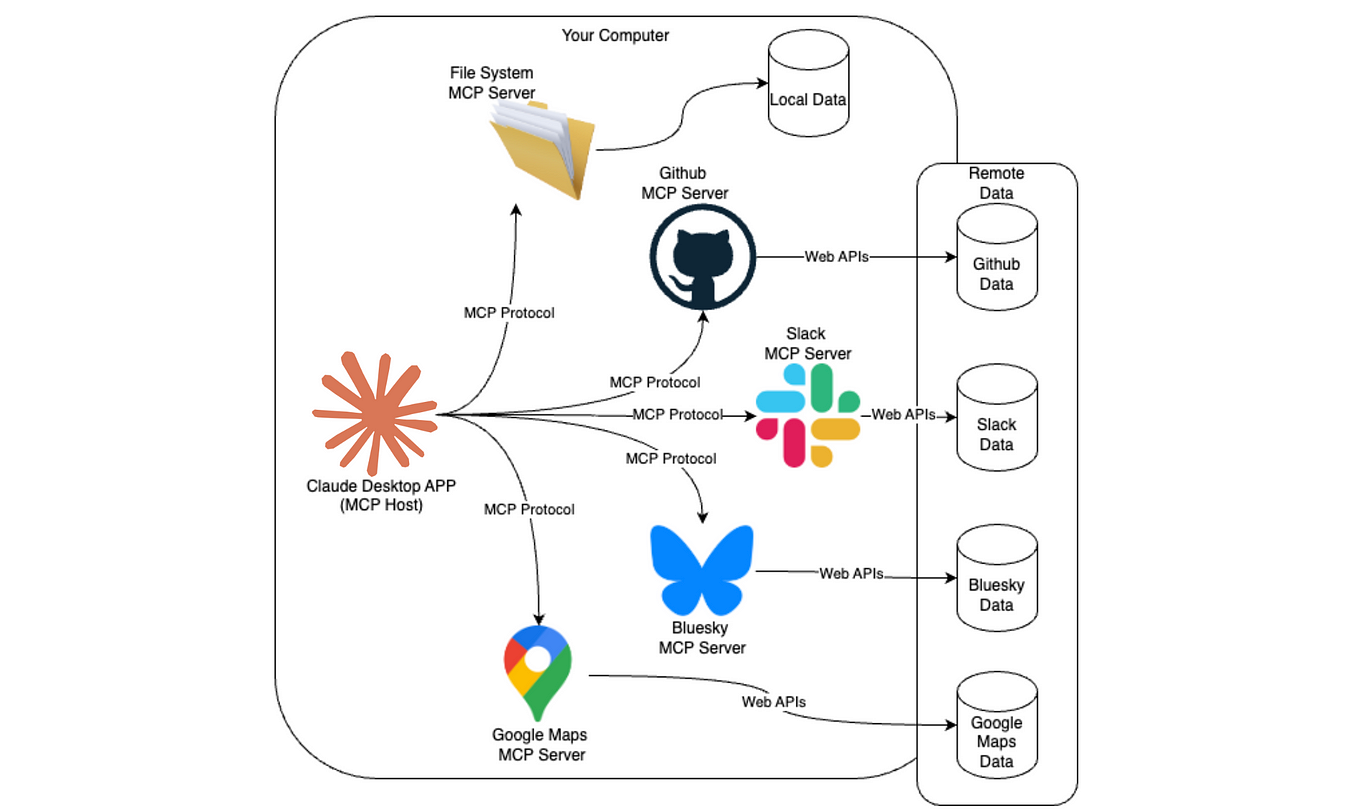
How to Build a Universal LLM Gateway with the help of MCP + FastAPI
Build an MCP server with FastAPI, Docker, and Streamlit to unify access to GPT, Claude, Gemini, and more through one API.
How to Build a Universal LLM Gateway with the help of MCP + FastAPI
Build an MCP server with FastAPI, Docker, and Streamlit to unify access to GPT, Claude, Gemini, and more through one API.